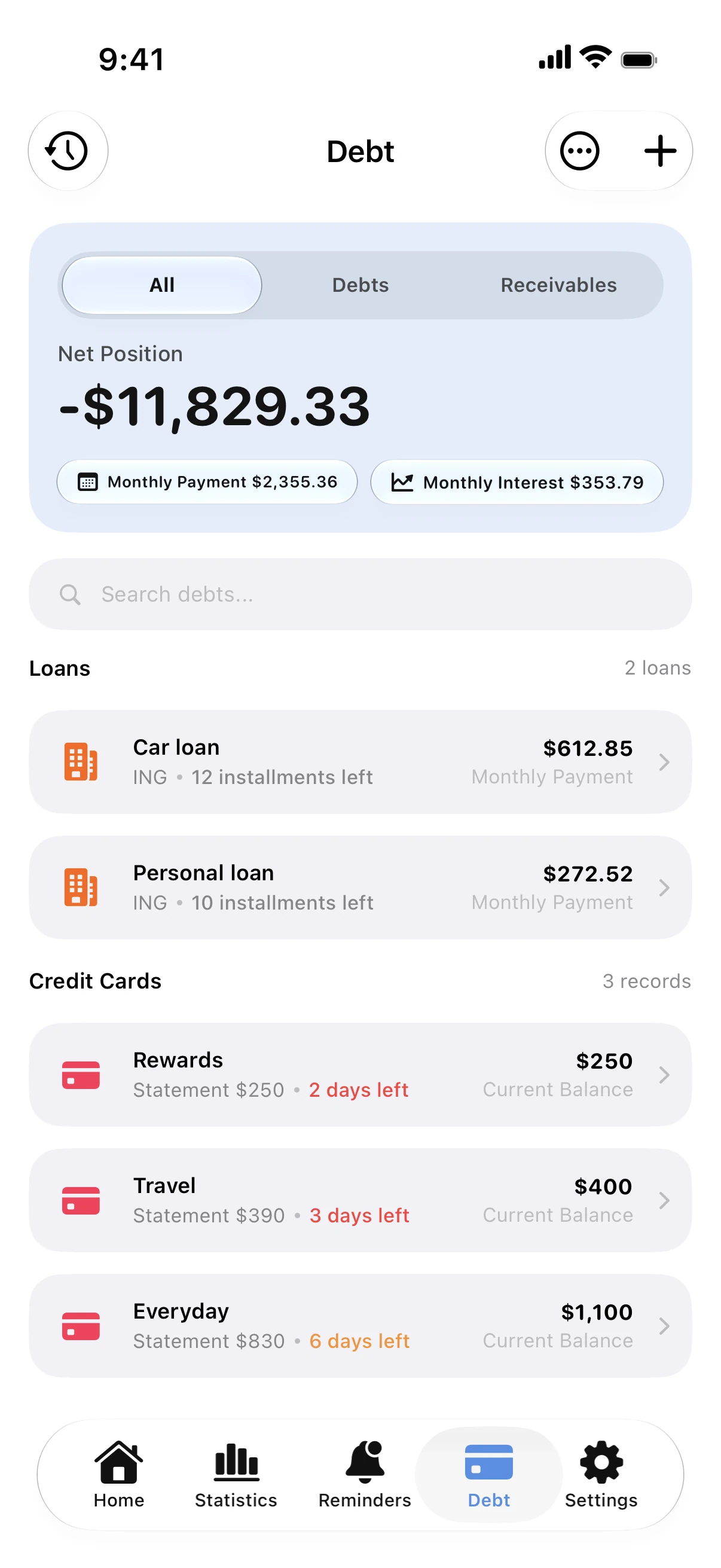
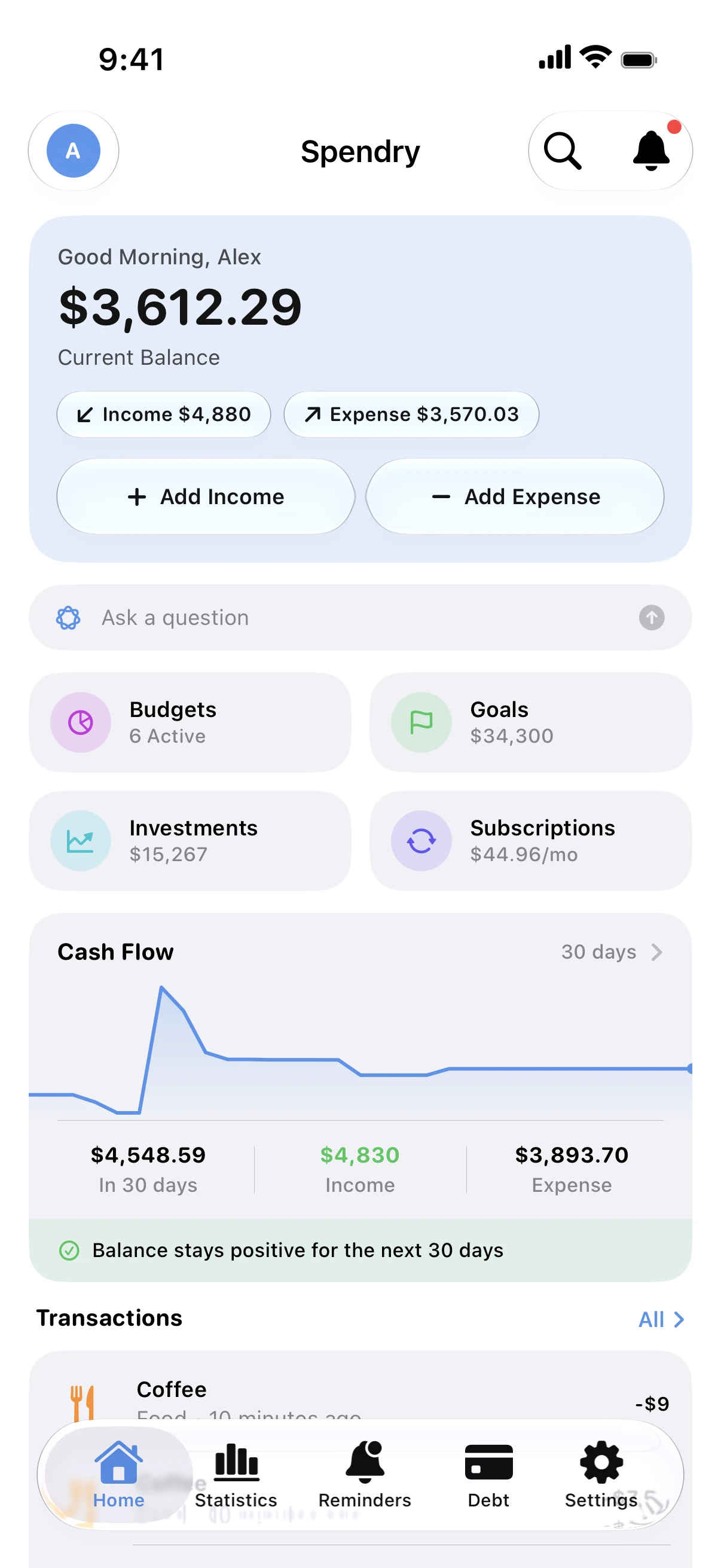
Spendry has widgets for your balance, budgets, goals, debts, cash flow and upcoming payments, in sizes for the Home Screen and the Lock Screen.
Add a Spendry widget
- Touch and hold an empty area of your Home Screen, then tap Edit and Add Widget.
- Search for Spendry and choose a widget and a size.
- Touch and hold the widget and tap Edit Widget to choose which budget, goal or account it shows.
Tip
Put the upcoming payments widget on your first Home Screen page. Due dates are the easiest thing to forget.
Questions
Can I add an expense from a widget?
Yes. The add widget opens straight to a new expense, so logging a purchase takes a few seconds.
Do the widgets update on their own?
Yes. They refresh as you add entries and through the day.